
Google released a CLI tool that lets AI agents access your Google Workspace
Google Workspace lets AI agents access your entire Google Workspace ecosystem, including tools like Drive, Gmail, Calendar, Sheets, Docs, Chat, Admin, and more.

Google released an AI-optimized command line interface (CLI) for Google Workspace.
The tool is designed to manage the user’s entire Google Workspace ecosystem, including tools like Drive, Gmail, Calendar, Sheets, Docs, Chat, Admin, and more.
Unlike static tools, this application dynamically updates its command structure by reading Google’s Discovery Service, ensuring it remains compatible as new API features are released.
Key technical highlights:
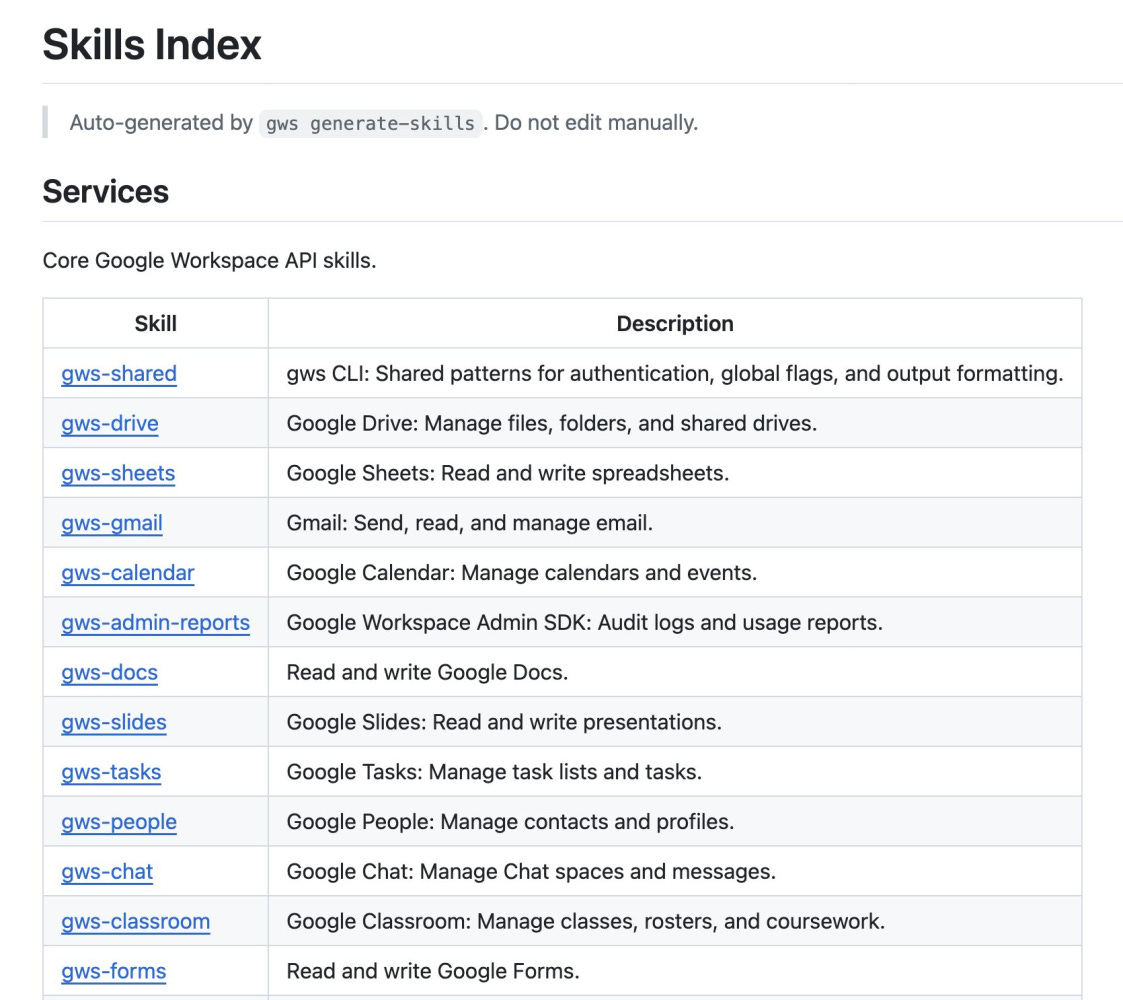
100+ built-in agent skills
50 curated recipes for common workflows across Gmail, Drive, Docs, Calendar, and Sheets
Native MCP server support
Structured JSON output, every time
Auto-discovers new API endpoints at runtime
You can check all the available skills here: https://github.com/googleworkspace/cli/blob/main/docs/skills.md
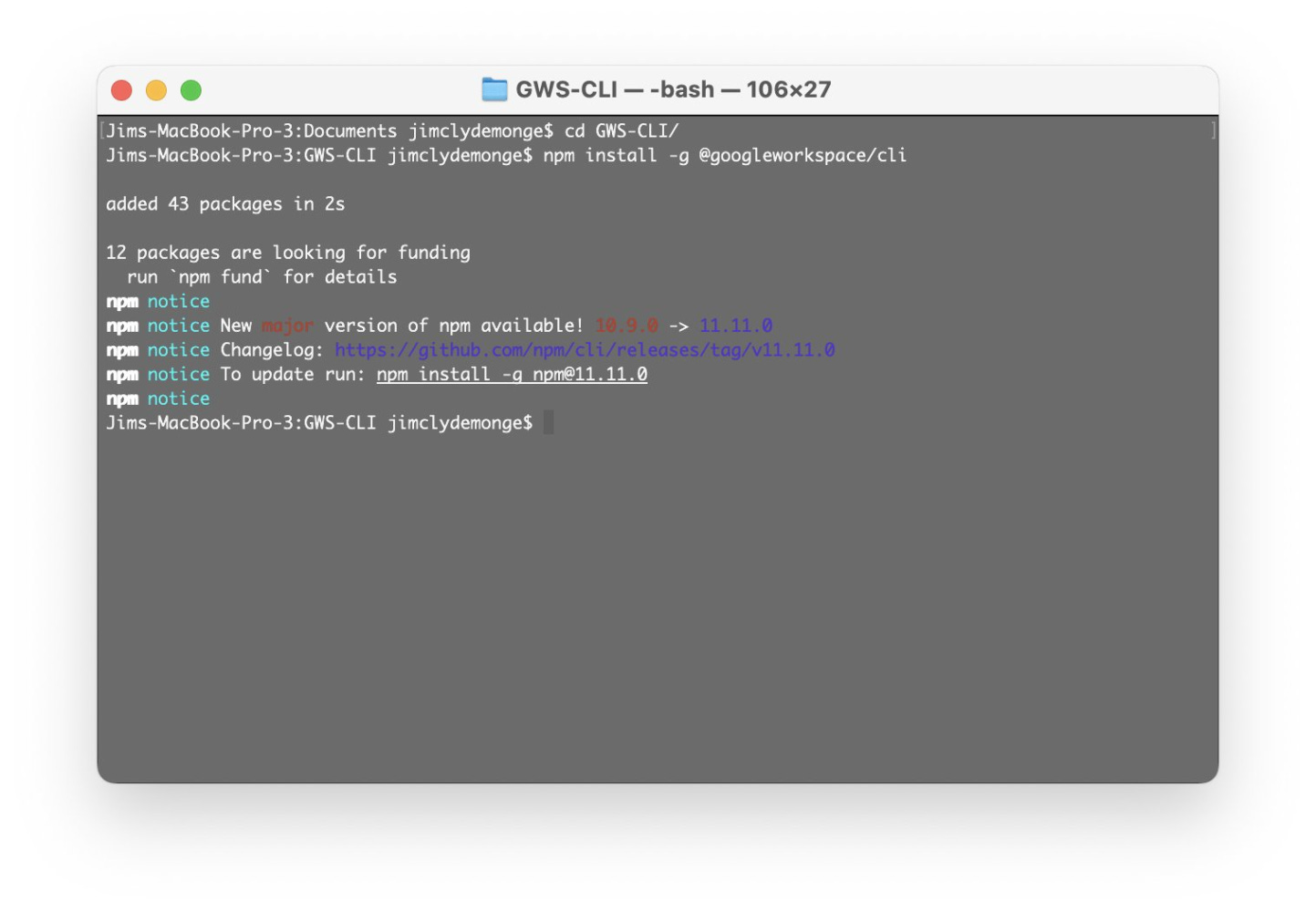
While the codebase is almost entirely written in Rust (99.3%), it uses npm to bundle pre-built native binaries for different operating systems and architectures, meaning users do not need a Rust toolchain installed to use it.
The next step is to install GCloud CLI. You can find the full instructions here: https://cloud.google.com/sdk/docs/install
If you are on an Apple Silicon, use this set of commands:
curl -O https://dl.google.com/dl/cloudsdk/channels/rapid/downloads/google-cloud-cli-darwin-arm.tar.gz

tar -xf google-cloud-cli-darwin-arm.tar.gz

./google-cloud-sdk/install.sh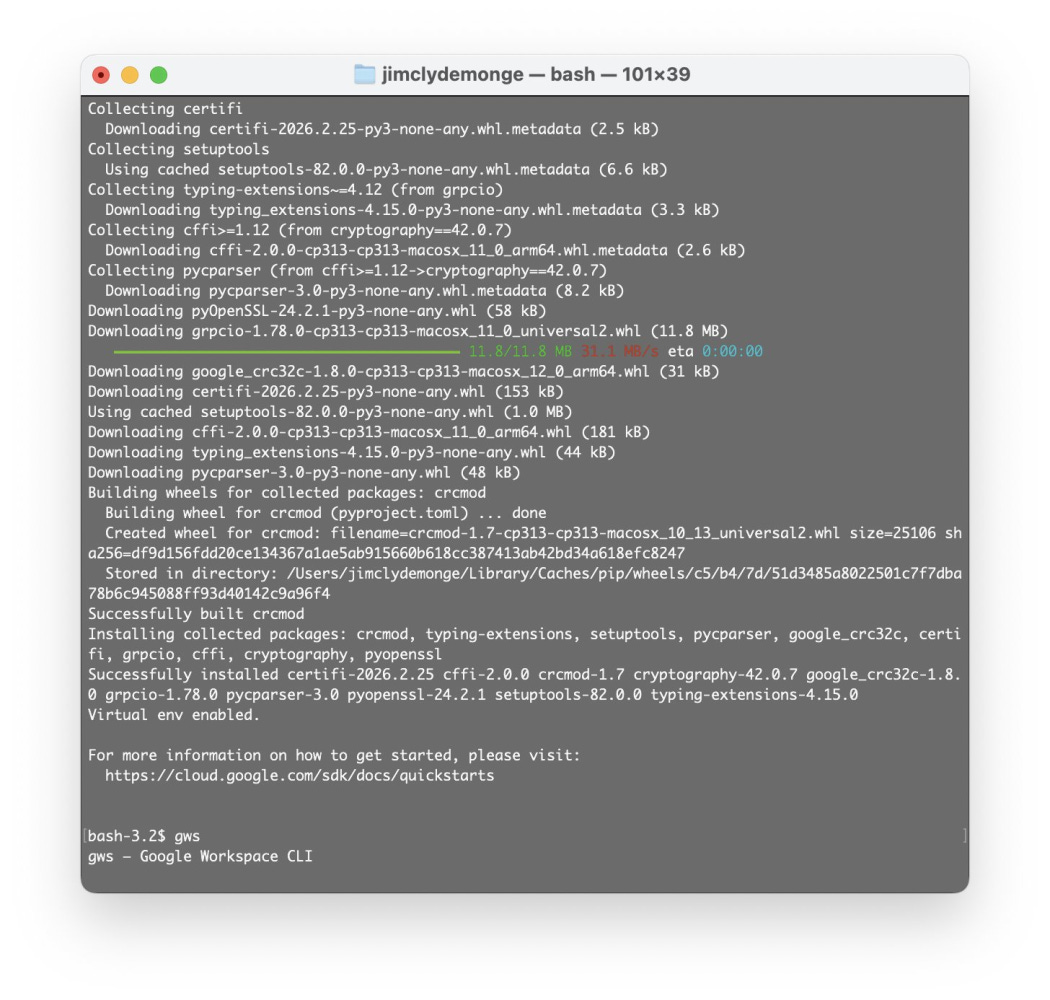
This will allow Google Cloud SDK to:
View and manage your applications deployed on Google App Engine
See, edit, configure, and delete your Google Cloud data and see the email address for your Google Account.
View and sign in to your Google Cloud SQL instances
View and manage your Google Compute Engine resources
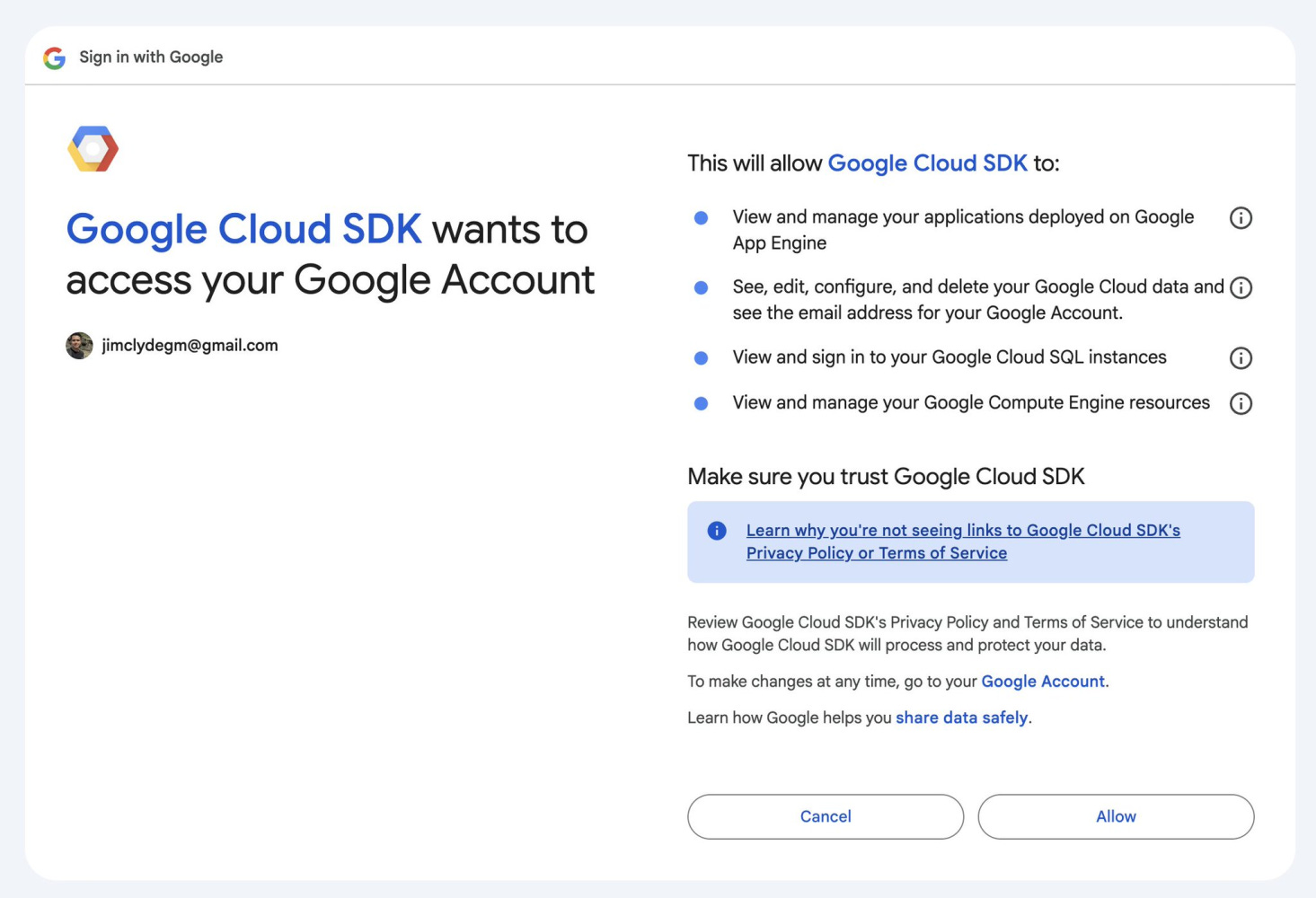
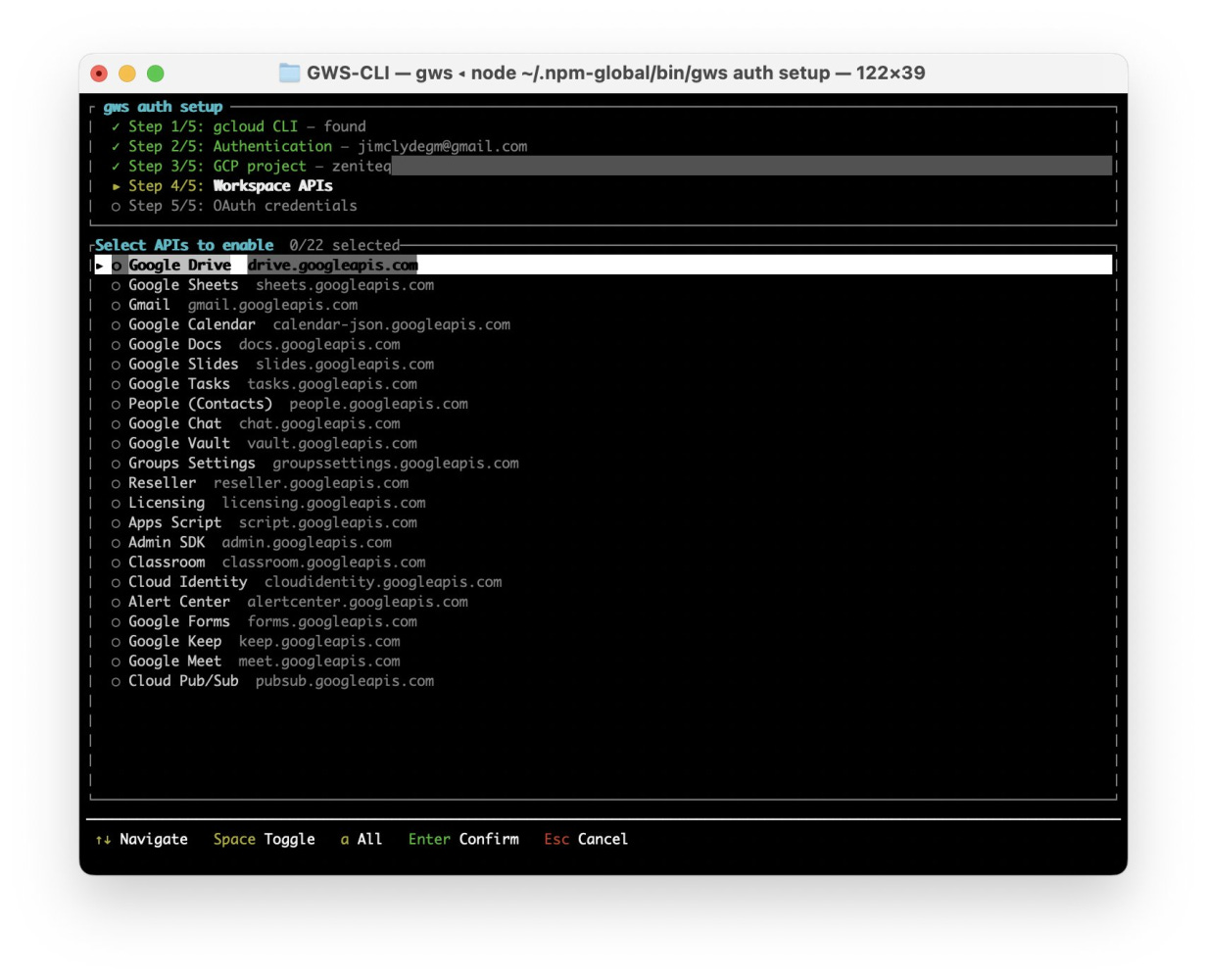
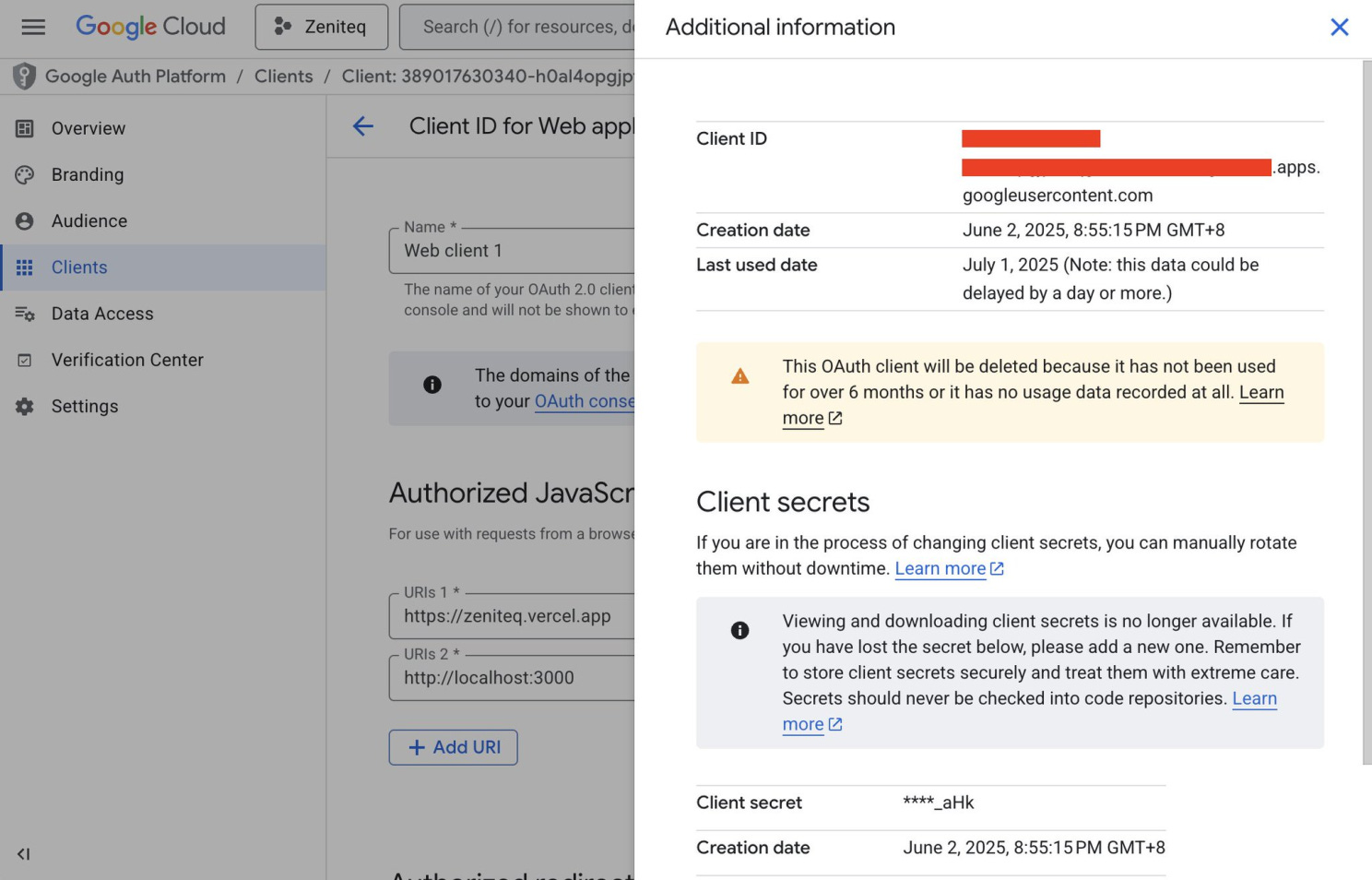
Follow the on-screen instructions, and you’ll be asked to input the Client ID and Client Secret of your Google Project.
You can find both keys under the Client tab in your GCloud dashboard.
Once the setup is successful, you should see the message “Setup complete! Run gws auth login to authenticate.”
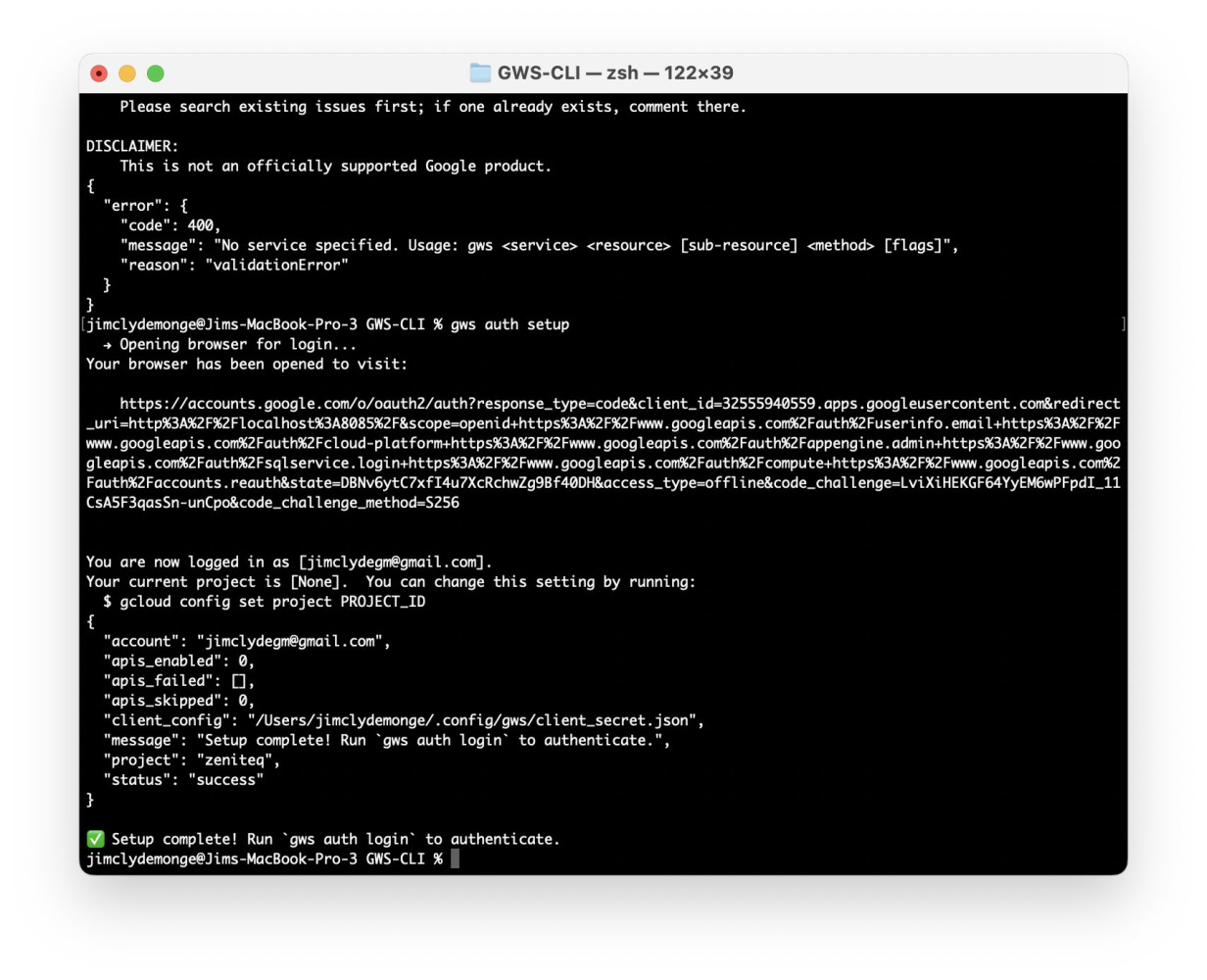
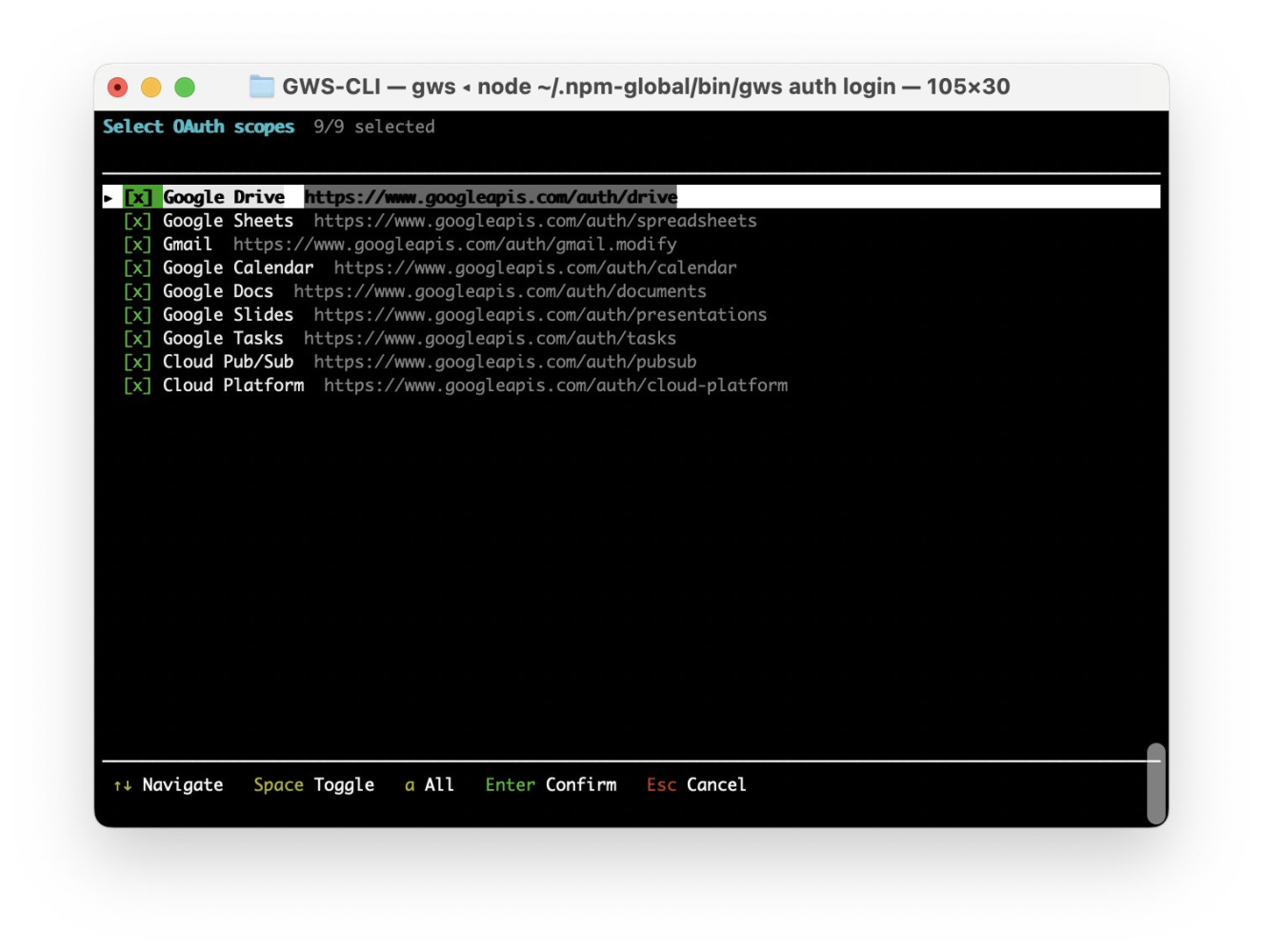
When you run the “gws auth login” command, you will be asked to select the OAuth scopes.
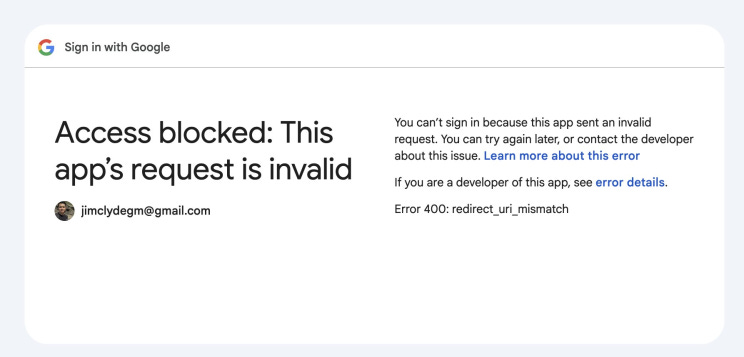
During my setup process, I came across this error: “Access blocked: This app’s request is invalid.”
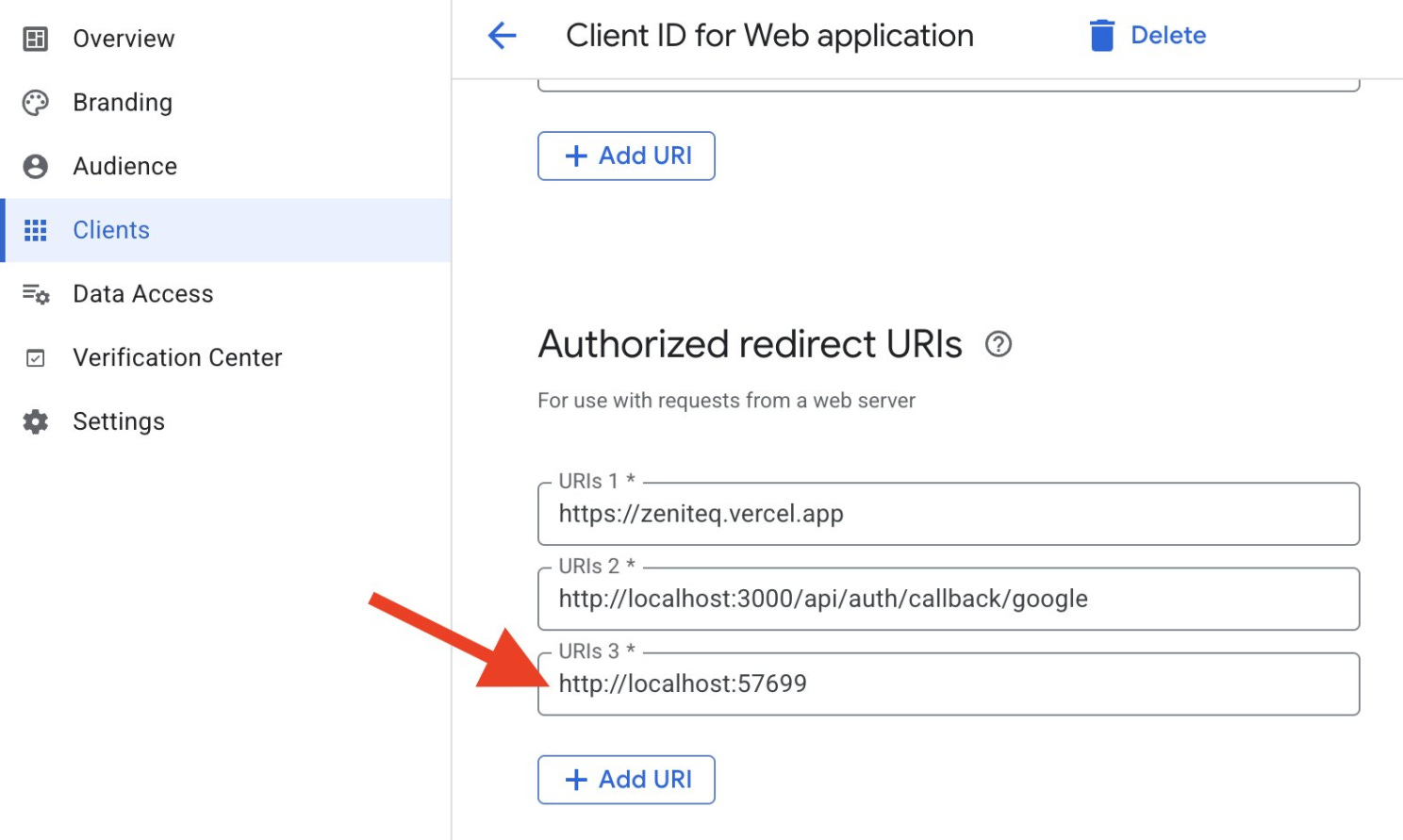
The problem is that the URL http://localhost:57699 is not in the authorized redirect URIs.
To solve this issue, you need to add the URL to the approved list under the Client’s tab > Authorized Redirect URIs.
Save the settings, and refresh the authentication link.
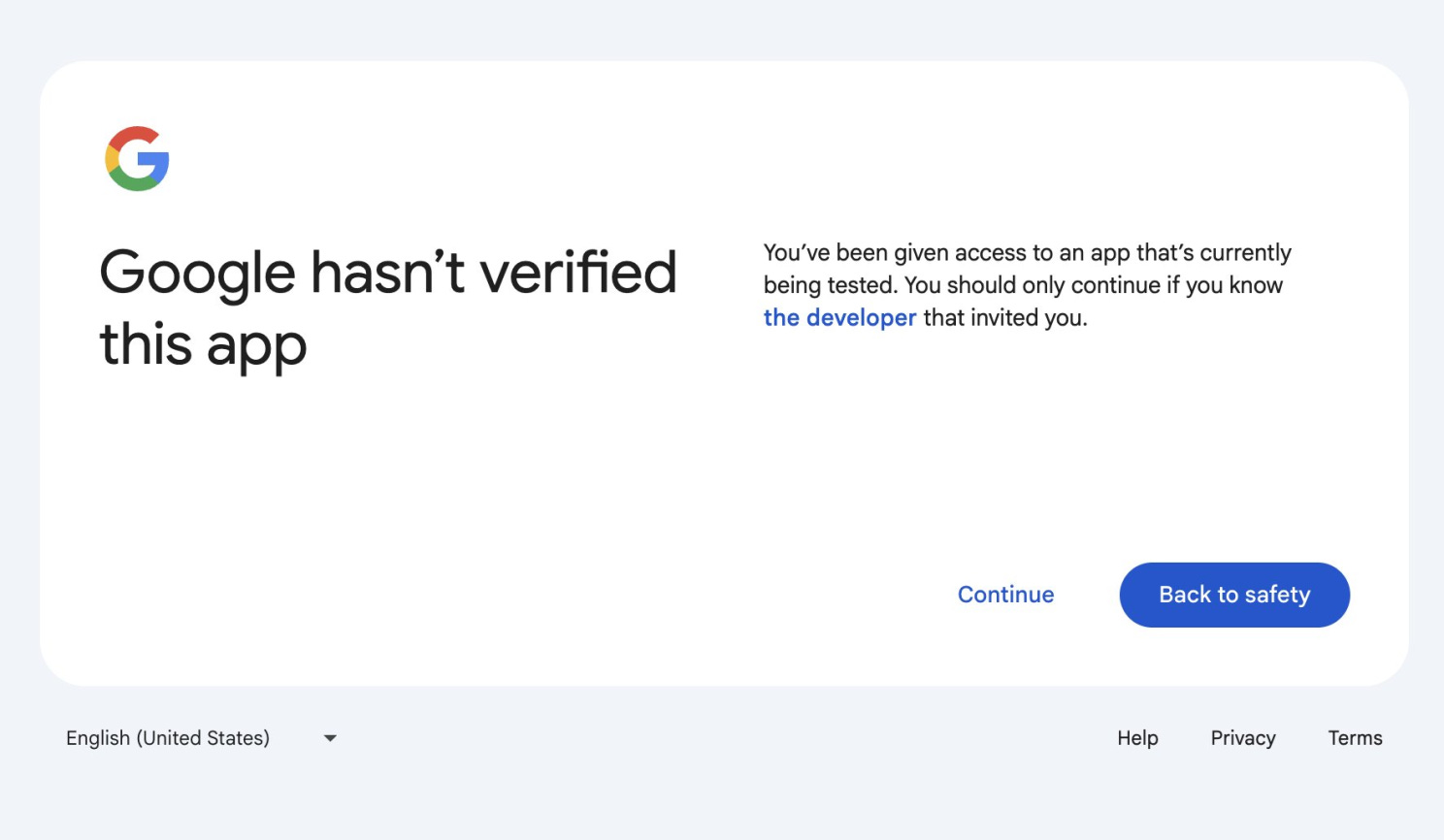
You may see another error about an unverified app. Just click on the Continue button and give the project permission to your Google account.
If there are no more errors, the authentication is a success.
Now, let’s get into an example.
Google Drive CLI access example
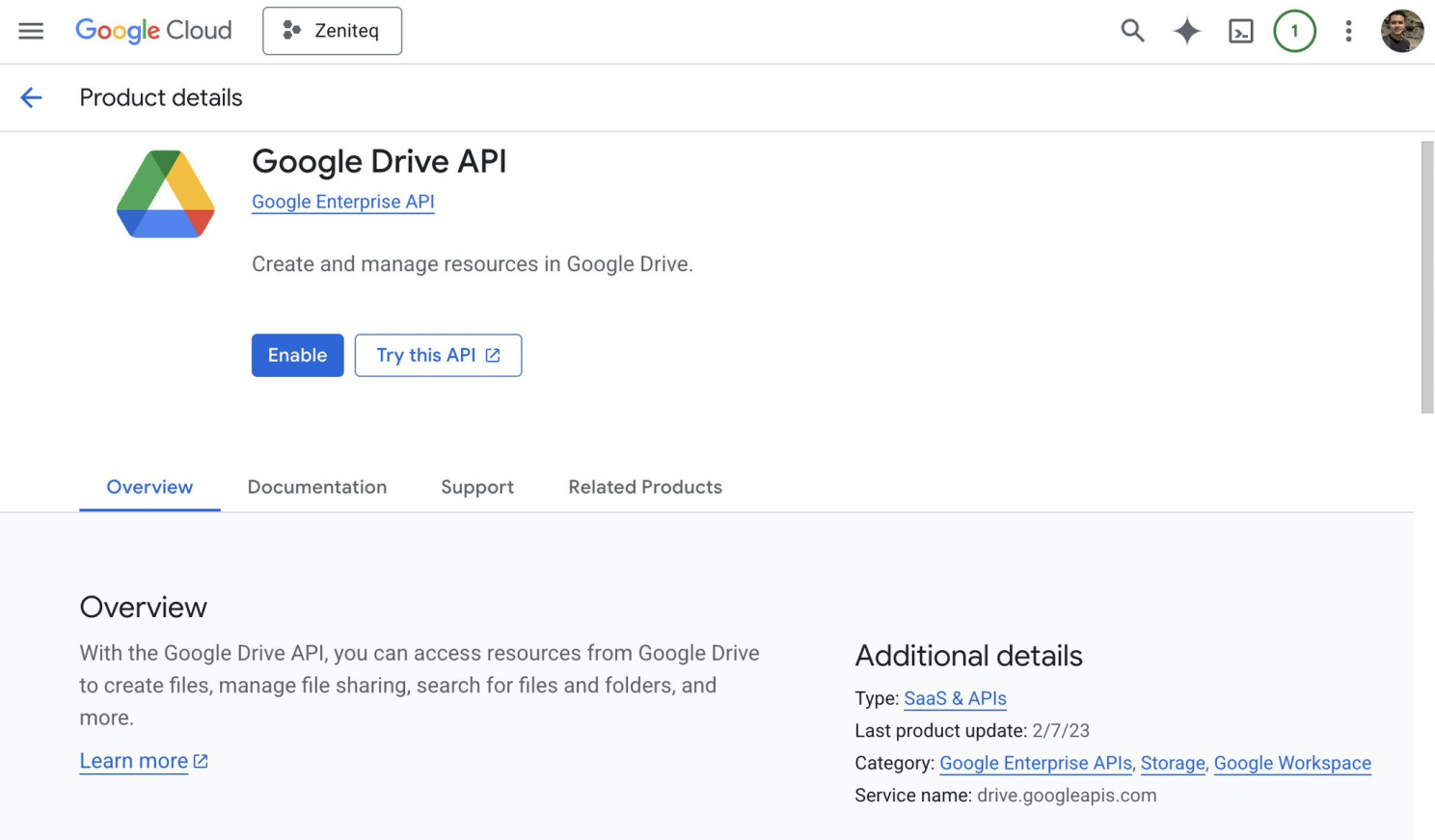
Before using the CLI tool to access a user’s Google Drive, you need to enable the Google Drive API on the specific project.
To do that, open the link below and click on the Enable button.
https://console.developers.google.com/apis/api/drive.googleapis.com/overview?project=[PROJECT_ID
Head back to the terminal and run this command:
gws drive files list --params ‘{”pageSize”: 5}’
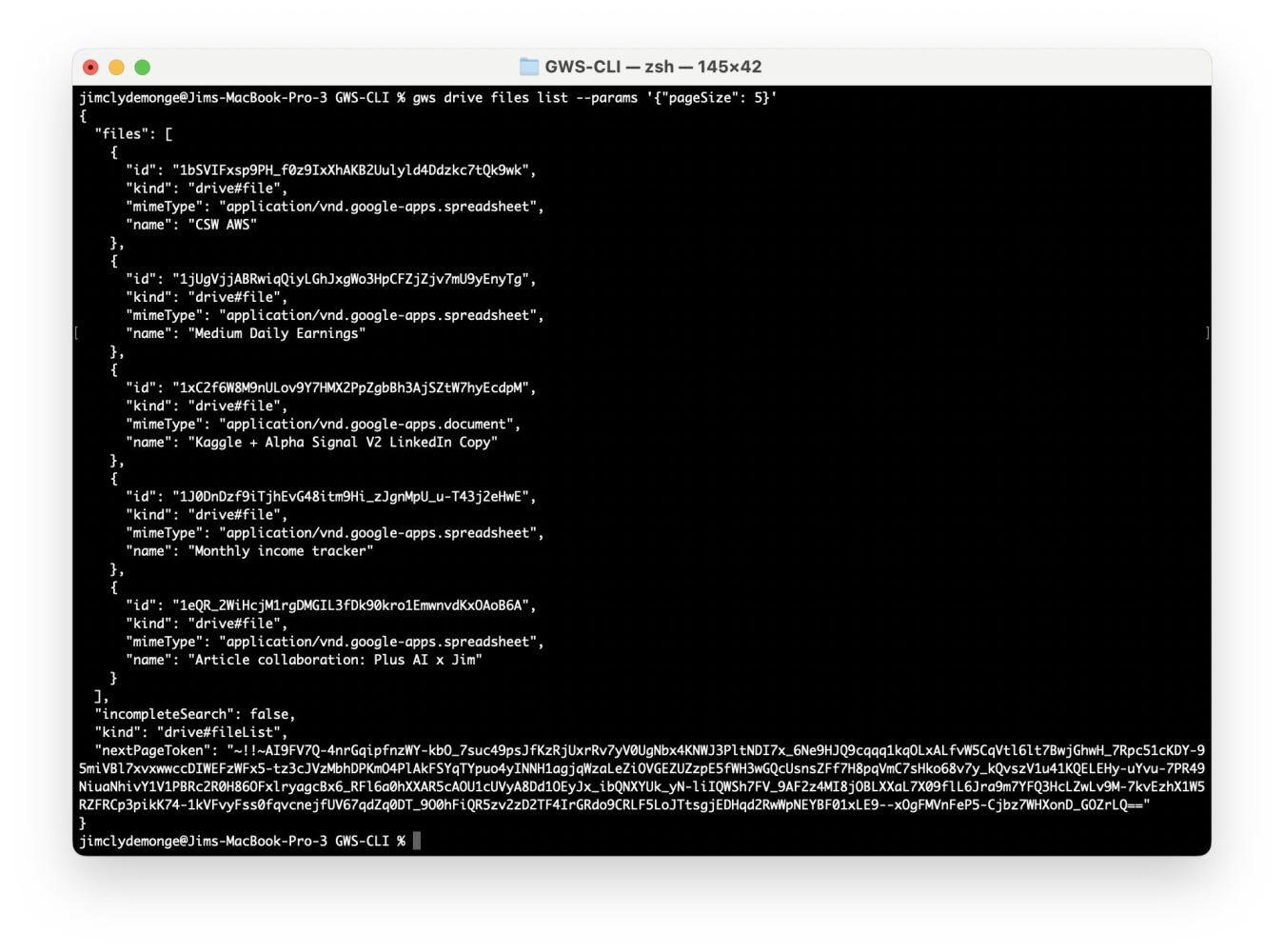
As you can see in the results, the command returned a list of the top 5 files saved in my Google Drive.
Who It’s For
Power users who want to script Workspace tasks without opening a browser.
Developers automating reports, file management, email processing, etc.
People building AI agents/tools that need reliable, structured access to Workspace data.
Practical use cases
Here are some practical examples that you can do with the CLI tool:
Equip AI agents with workspace access: Because all output from the CLI is formatted as structured JSON, users can give Large Language Models (LLMs) direct ability to manage their Workspace without building custom tooling.
Automate tasks using pre-built recipes: Instead of building automations from scratch, you can use the curated recipes to execute common workflow tasks across Gmail, Drive, Docs, Calendar, and Sheets. You can also take advantage of the tool’s extensive library of over 100 agent skills.
Protect AI agents from prompt injections: Users can sanitize API responses before their AI agents read them by integrating Google Cloud Model Armor.
References:
GitHub repo: https://github.com/googleworkspace/cli
Google Cloud CLI: https://docs.cloud.google.com/sdk/docs/install-sdk
Join 250k+ developers staying ahead in AI. We curate the latest models, repos, and research — so you don’t miss what matters: AlphaSignal.ai